
How to Add Links to Your Instagram Bio: Step-by-Step Guide 2026
This guide explains in detail how to add links to your Instagram bio using Instagram's native multiple link feature (supports up to five links) and third-party link-in-bio tools (supports unlimited links and data analytics).
If you've ever written "link in bio" in an Instagram post caption, you know the struggle: the tiny area under your profile is the only place Instagram lets you put a clickable link. It's precious real estate for traffic, and how you use it directly determines how well your audience conversion works.
In the past, adding links was simple: you could only add one link, and that was it. But Instagram has changed that. Starting in 2023, you can now natively add up to five links. Even with this update, however, many people are still unsure how to set this up correctly — and whether they should use Instagram's built-in feature or a third-party link tool.
If you've been wondering how to add links to your Instagram bio in 2026 without overcomplicating things, you've come to the right place. Let's walk through everything step by step.
What is an Instagram bio link?
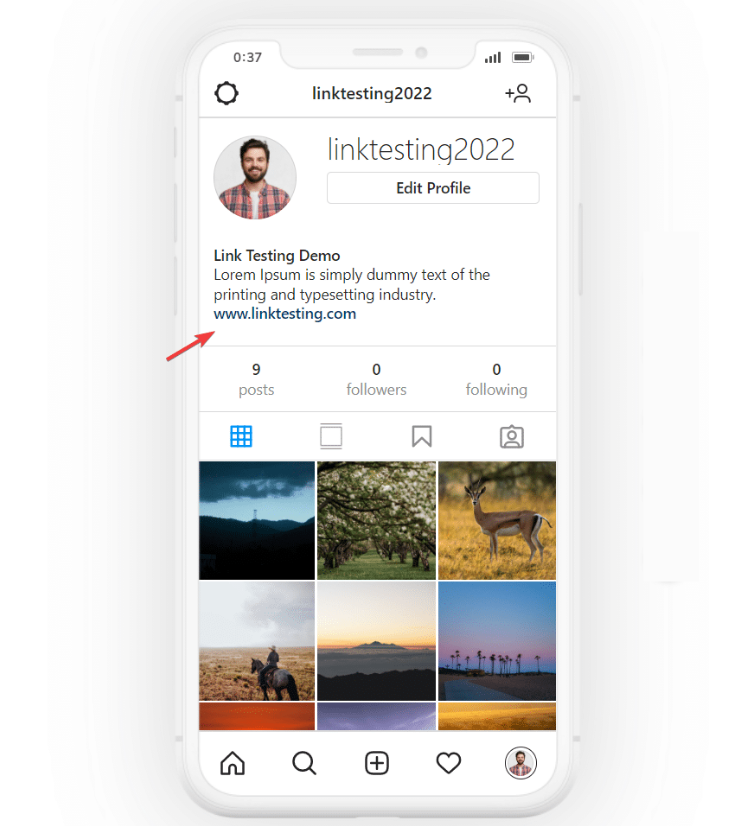
A link in bio, as the name suggests, is a clickable URL placed in the link section of your Instagram profile. It sits below your bio text, and it's the only place in your profile where you can add an active hyperlink.
For a long time, Instagram only allowed one link per profile. This forced content creators and business owners to change their URL frequently to match whatever they were currently promoting. If you ran a promotion one day and had a new podcast episode drop the next, you had to manually update your bio every single time.
In April 2023, Instagram rolled out an update that changed this. Now you can add up to five links directly to your bio without any third-party tools. The first link you add appears as a visible button on your profile, and when users tap it, a small menu pops up showing your remaining links.
This is a solid improvement, but it still has limits. You can't track clicks on individual links, and it can't accommodate you if you need more than five links. That's why many people still choose to use third-party link-in-bio tools — they offer greater flexibility, more comprehensive analytics, and a better user experience.
Why should you add links to your Instagram bio?
If you actually want to grow your audience or sell products online, adding links to your bio isn't optional — it's mandatory. Here's why:
First, Instagram doesn't allow clickable links in post captions. You can paste a URL, but it won't turn into a hyperlink. That means whenever you want to direct followers to a blog post, product page, or sign-up form, your bio link is your main tool. Without it, you have to hope people manually copy and paste the URL — and most people won't bother.
Second, your bio link is the entry point where you control your traffic. Instead of sending users to a generic homepage, you can direct them straight to where you want them to go. Whether it's a new product launch, a subscription sign-up, or a specific piece of content, the decision is entirely in your hands. The fewer steps users take between clicking and landing on your target page, the higher your conversion rate will be.
Third, an organized set of links builds trust. When users visit your profile, they're deciding whether to follow you or engage further. A clean, easy-to-navigate link setup shows you're professional, organized, and serious about your work.
How to add links to your Instagram bio (step-by-step tutorial)
Let's get into the actual steps. Whether you use Instagram's native link feature or a third-party tool, here's the complete method for how to add links to your Instagram bio in 2026.
Step 1: Open Instagram and go to your profile
Tap your profile picture in the bottom right corner. This will take you to your homepage, where your posts, bio, and any existing links are displayed.
Step 2: Tap "Edit Profile"
This button is located right below your bio text, above your highlights reel. Tap it to open the edit screen.
Step 3: Scroll to find the "Links" section
Once you're on the Edit Profile screen, scroll down until you find the "Links" option. If you've never added a link before, this section will be empty.
Step 4: Tap "Add external link"
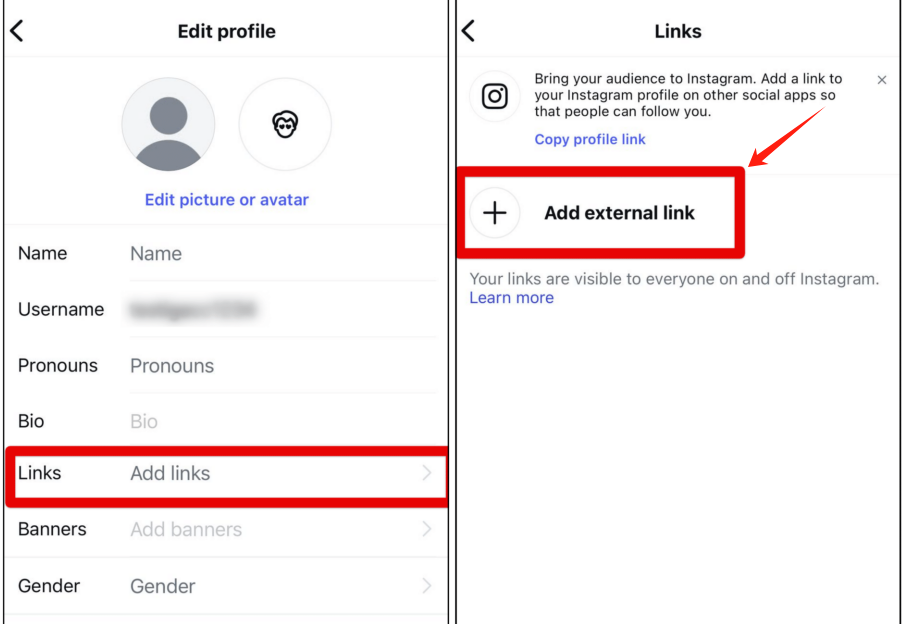
This will open an input field for you to paste your URL. Instagram allows you to add up to five links directly here, no external tools required.
Step 5: Paste your URL and add a title
Enter the full URL into the input box, then add a title — the title is the text that will appear on your profile button. For example, you can label it "Shop Now" or "Read the Blog" instead of showing a messy URL. If you skip adding a title, Instagram will just display the raw link.
Step 6: Save your changes
Tap the checkmark in the top right corner to confirm, and your link will now appear on your profile. To add more links, just repeat steps 4 through 6. Instagram will display your first link as the main button, and the rest will expand when a user taps it.
Step 7: Reorder your links
You can tap the three-line icon next to each link to reorder them. Since the top link gets the most visibility, make sure you put your most important destination first.
How to add multiple links to your Instagram bio with a third-party tool
Instagram's five-link limit is enough for some users, but if you run a business, create content across multiple platforms, or just have a lot to share, five links will run out quickly.
Third-party link-in-bio tools solve this problem. Instead of filling your Instagram profile with multiple URLs, you just create a separate landing page that holds all your links, then add that single URL to your bio. When users click it, they land on your custom page and can choose from all the content you offer.
Step 1: Choose a link-in-bio tool
There are plenty of options available in 2026. Some link-in-bio tools are free, and others charge a monthly fee. Popular options include Linktree, Beacons, and Snipfeed. If you want a completely free tool that supports unlimited links and real-time click tracking, try Biovelt. It's simple to use, doesn't require a credit card, and lets you see exactly which content your audience clicks on.
Step 2: Set up your page
Most tools follow a similar setup process. After signing up, you can start adding links, and you can usually:
`- Set custom titles for each link
- Add icons or images
- Choose colors that match your brand
- Reorder links via drag and drop ` The goal is to keep things organized. Don't pile every possible link onto the page; group them by category or highlight your top priority promotion. A clean, focused page gets more clicks than a cluttered one.
Step 3: Add the URL to your Instagram bio
Once your page is ready, copy the URL generated by the tool, then follow the same steps we covered for native links: go to Edit Profile, tap Links, and paste this URL as your first link. Now when users click your bio link, they'll see all your links on one organized page.
Step 4: Track your performance
One of the biggest advantages of using a link-in-bio tool is data analytics. Most platforms show real-time click counts for each link, which helps you figure out what your audience actually cares about. If a link gets no clicks, swap it out for something more relevant.
Pro tips to make your bio link actually work
Adding the link is the easy part — getting people to click it and take action takes a little strategy. Here are practical tips that go beyond the basics and make a real difference.
1. Put your most important link first
The top link gets the most exposure, because it's displayed directly in the most visible spot. Links further down require an extra tap from users, which means they get significantly fewer clicks. If you're running a limited-time promotion, that should be your first link. Put your evergreen links (like your main website or portfolio) in second or third place.
Treat your link order like a mini content calendar: change it every week based on what you're currently promoting, so your bio never gets outdated and your audience always knows where to find your latest content.
2. Use a clear call to action
A link sitting quietly in your bio won't get clicks unless people know it's there. Use the last line of your bio text to point to the link, with something as simple as "Check out our new product 👇" or "Free guide below." A down arrow is a universally recognized signal to scroll down.
Don't stop there — mention your bio link in your posts and stories too. When you publish a new product, add a line that says "Tap the link in bio to get this." The more touchpoints you create, the more people will get into the habit of checking your bio.
3. Keep your links updated
Outdated links disappoint your audience. If someone clicks the promotion link you mentioned only to find the deal ended weeks ago, you'll lose trust and potential customers. Set a reminder to check your links every two weeks.
Ask yourself: Do all these links still make sense? Am I promoting content that's no longer available? If you're using a link-in-bio page, cut links that aren't performing. A page with five carefully chosen, up-to-date links looks far more professional than one with ten random, out-of-date links that just create clutter. Less is more.
4. Pay attention to your data
If your link-in-bio tool offers analytics, it gives you something most Instagram users don't have: real insight into what your audience wants. Look at which links get the most clicks, and that will tell you what your followers actually care about — not what you think they care about.
If your subscription link gets twice as many clicks as your shop link, that's a sign you should put more effort into email marketing. Also, watch for patterns over time: if clicks spike on certain days, schedule your important promotions for those times. Let data guide your decisions.
5. Consider using a custom short link
This small detail can make an unexpected difference. A branded URL like yourname.link or link.yourbrand.com looks cleaner than a generic tool link and builds more trust. When people see a branded link, it feels like your own asset, not a third-party tool.
If your link-in-bio tool doesn't support custom domains, you can use Bitly or Rebrandly to create a shortened branded link that redirects to your page. It only takes a few minutes to set up, and it makes your profile look much more polished and professional.
6. Think about user experience
What do users actually see when they click your bio link? If you use Instagram's native links, make your titles descriptive. Don't just write "Website" — write "Read our blog." Don't just write "Shop" — write "Shop our holiday sale." Give users a reason to click before they even tap.
If you use a link-in-bio page, group related links together and use images to make the page easier to scan. Test your own links regularly — open them on someone else's phone or in incognito mode. Does the page load fast enough? Is it clear what you should click next? A few minutes of testing can catch problems you wouldn't notice otherwise.
Frequently asked questions about adding links to your Instagram bio
How many links can I put in my Instagram bio?
As of 2026, you can add up to five links directly to your bio using Instagram's native feature. If you need more, a link-in-bio tool lets you add unlimited links through a single URL.
Do I need a business account to add links?
No. Instagram has opened the multiple link feature to all users — personal, creator, and business accounts all qualify. Anyone can add up to five links, no matter how many followers you have.
Why can't I find the links option?
If you can't find the links section when editing your profile, check that your Instagram app is updated to the latest version. The feature only rolled out fully in 2023, so older versions may not show it. Also double-check that you're looking in the right place — it's below your bio text on the Edit Profile screen.
Can I add links to Instagram Stories?
Yes, and it works differently from a bio link. Instagram offers a link sticker for Stories that any account can use. You just create your story, tap the sticker icon, select "Link," and paste your URL. This is a great way to drive traffic to specific content without editing your bio.
Should I use Instagram's native links or a third-party link-in-bio tool?
It depends. If you only need a few links and don't care about analytics, Instagram's native option is simple and free. But if you need unlimited links, click tracking, or the ability to update your promotions without editing your bio every time, a third-party link-in-bio tool is worth the extra step.
Can I see how many people clicked my bio link?
Not with Instagram's native links — you can't track clicks at all. Link-in-bio tools almost always include analytics. Some tools, like Biovelt, show real-time click data so you know exactly which links your audience interacts with.
Summary
Learning how to add links to your Instagram bio seems like a small thing, but it has a huge impact on how you connect with your audience. This tiny area is the bridge that connects your Instagram account to everything else you do — your website, your products, your content, your community.
In 2026, you have multiple options. You can use Instagram's native multiple link feature to add up to five URLs quickly and easily. You can also choose a third-party link-in-bio tool to get unlimited links, real-time analytics, and full creative control over how your links are displayed.
Whichever option you choose, you just need to keep things organized, update your links regularly, and remind your audience where to click. A well-managed bio link doesn't just drive traffic — it builds trust, showcases your best work, and turns casual visitors into engaged followers.
Spend a few minutes today looking at your own bio links: are they up to date? Easy to navigate? Do you have a clear call to action? A little effort now can make a real difference in how people connect with your business.